
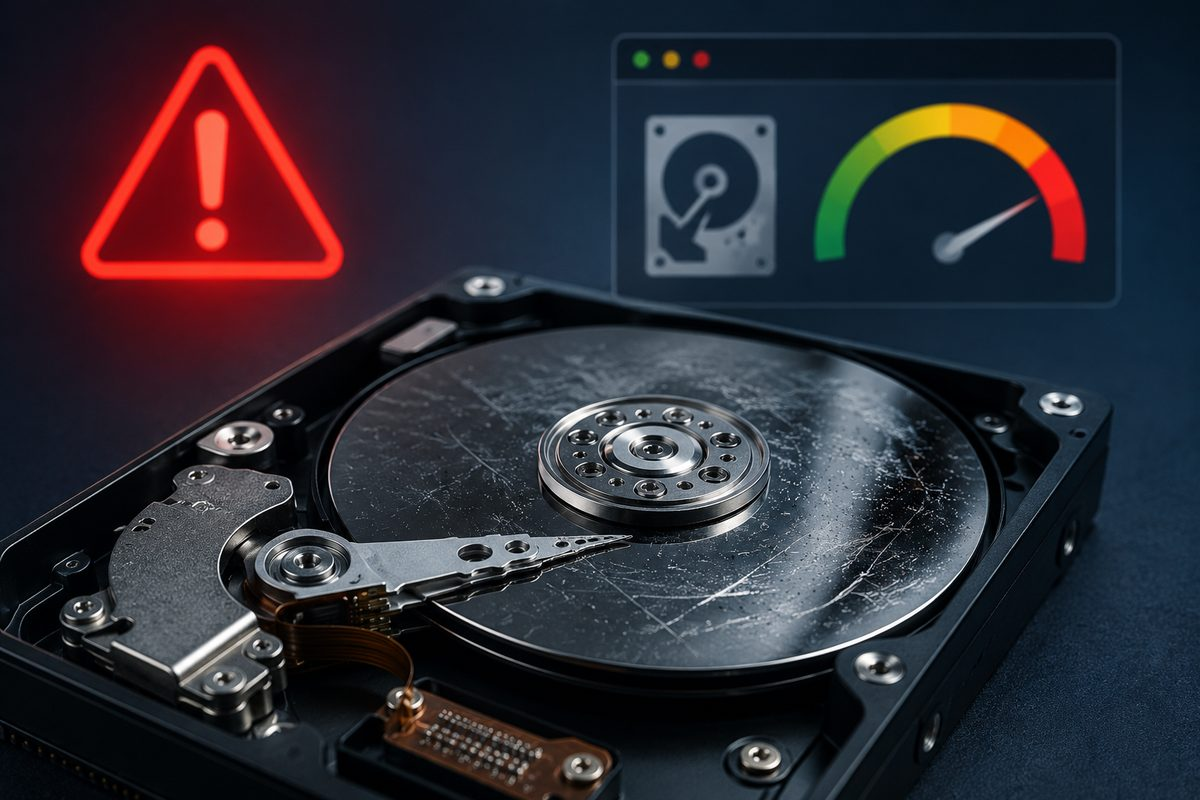
A hard drive can start having trouble before it fails completely, but the warning signs are not always obvious. A slow or unstable computer can also be caused by Windows problems, malware, limited memory, or other hardware. The goal is not to assume the worst. It is to recognize possible warning signs early enough to protect your files.
1. The Computer Freezes or Becomes Unusually Slow
A computer that frequently freezes while opening files, starting Windows, or launching ordinary programs may be struggling to read data from its drive. You might also notice long pauses, a spinning loading symbol, or programs that stop responding for no clear reason.
This symptom alone does not prove the drive is failing. Too many startup programs, low disk space, damaged Windows files, overheating, or unwanted software can produce similar behavior. If the slowdown is new, getting worse, or happens whenever files are accessed, it is worth having the computer checked.
2. You Hear Clicking, Grinding, or Repeated Start-Up Sounds
Traditional mechanical hard drives contain moving parts. A new clicking, grinding, scraping, or repeated spin-up sound can be a serious warning. Normal drives make a soft hum and occasional activity sounds, but loud or rhythmic noises deserve attention.
If the computer contains important files and the drive is making unusual mechanical sounds, stop using it. Repeated restarts, scans, and repair attempts can make physical damage worse. Turn the computer off and ask for advice before continuing. Solid-state drives, or SSDs, have no moving parts, so they do not make mechanical clicking sounds.
3. Files Disappear, Become Corrupted, or Will Not Open
Photos, documents, or folders that suddenly disappear, display errors, or refuse to open may point to file-system damage or unreadable areas on the drive. You may also see messages saying a file is corrupted or that a location is unavailable.
Accidental deletion, cloud-sync problems, software errors, and malware can also affect files. Avoid creating lots of new files or installing recovery programs onto the same drive. New data can overwrite information that might otherwise be recoverable. If the missing files matter, review Clemtech’s data recovery options before experimenting.
4. Windows Reports Drive or File-System Errors
Messages such as “repairing disk errors,” repeated checks at startup, bad-sector warnings, or a drive that sometimes disappears can indicate a storage problem. A computer that repeatedly boots into recovery mode may also be having trouble reading the files Windows needs.
One error does not automatically mean the drive must be replaced. A power interruption or forced shutdown can damage the file system even when the hardware is healthy. The important pattern is repetition: errors that return after repair, multiply over time, or appear with other symptoms need proper diagnosis.
5. The Drive Is Missing or the Computer Will Not Boot
If the computer says no boot device was found, cannot see the drive, or suddenly stops loading Windows, the cause may be a failed drive. It could also be a loose connection, a damaged Windows installation, a motherboard problem, or an incorrect setting. A careful diagnosis helps separate a repairable startup problem from a storage failure.
What to Do Before More Data Is Lost
- Back up important files now if the computer is stable and the drive is not making unusual noises. Copy irreplaceable documents and photos first.
- Stop using the computer if the drive clicks, grinds, repeatedly disconnects, or contains important files that are disappearing.
- Do not install recovery software on the affected drive. Writing new data can reduce the chance of recovering old data.
- Avoid repeated restarts. If hardware is failing, every extra attempt can add stress.
Repair, Replace, or Upgrade?
When a drive is healthy enough to copy, replacing an older mechanical hard drive with an SSD can make a computer feel much faster and more responsive. An SSD upgrade in Athens, AL may be a practical option when the rest of the computer is in good condition. If the problem is caused by Windows or another component, a general computer repair diagnosis may be all that is needed.
Need Help Checking a Drive?
If your computer is freezing, making unusual noises, losing files, or failing to start, call Matt at Clemtech Computers. I can help determine whether the symptoms point to the drive, Windows, or another part of the computer and explain the safest next step without confusing technical language.
